Students
The Students table contains a list of all your students. You can see the student's name, email, login, customer and last activity information. There is also a column with actions that you can perform on the student.
Navigate to Student Details
Once you click on a student name (in the first column) it will open the Student Details page. Same can be done by clicking on the 'info' icon in the Actions column.
Student Details Page
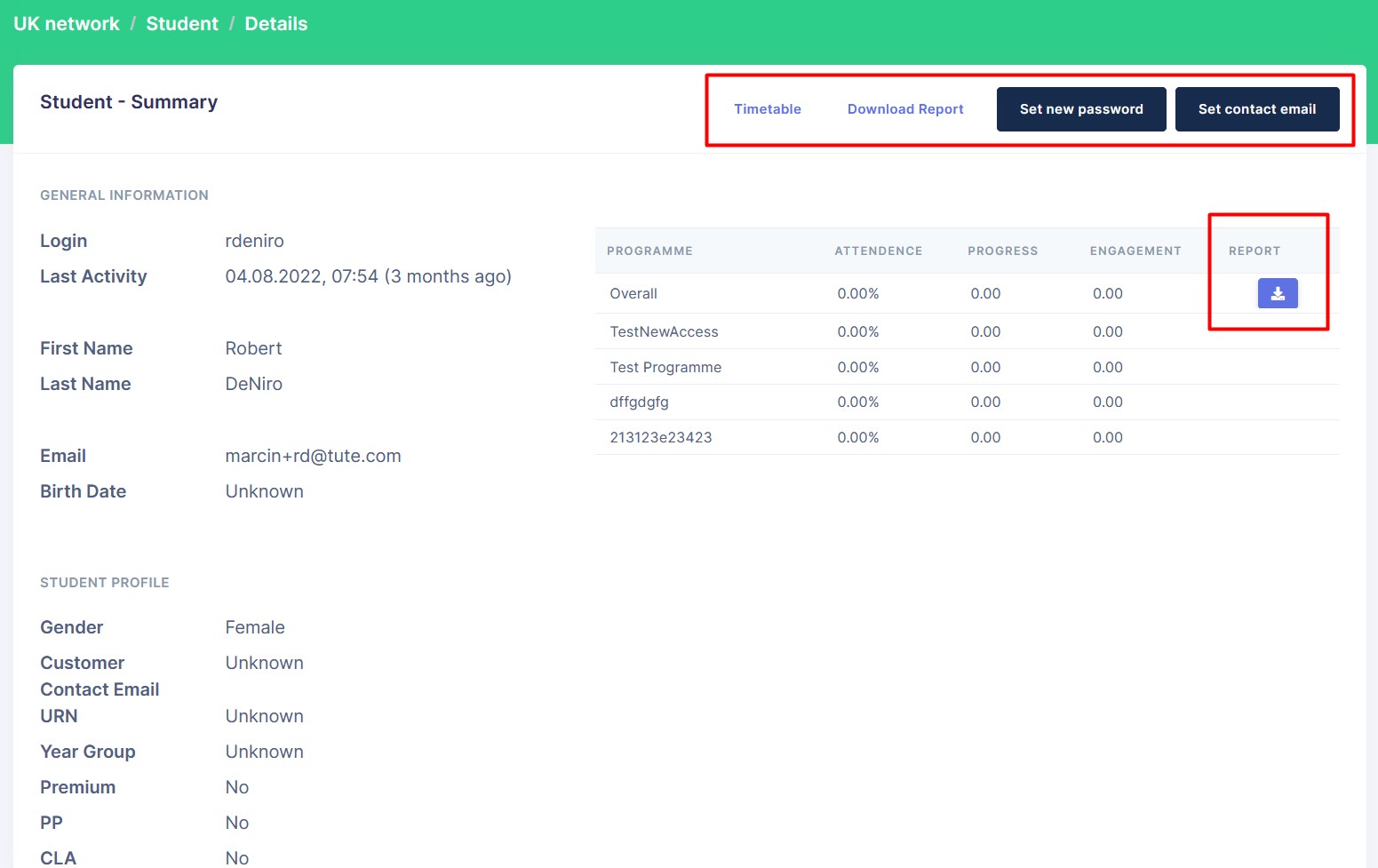
Student Details Page has all the information about the student. Here you can perform the following actions:
Download Report
Click on the Download Report button to download the student's report. The report will be downloaded in CSV format. Same can be done by clicking on the 'download' icon in the Report column.
Set New Password
Click on the Set New Password button to set a new password for the student. The dialog will open. Enter the new password and click on the Set Password button. The new password will be set.
New password has to be at least 3 characters long. The password and confirmation must match.
Set Contact Email
Click on the Set Contact Email button to set a new contact email for the student. The dialog will open. Enter the new contact email and click on the Set Email button. The new contact email will be set.
Timetable
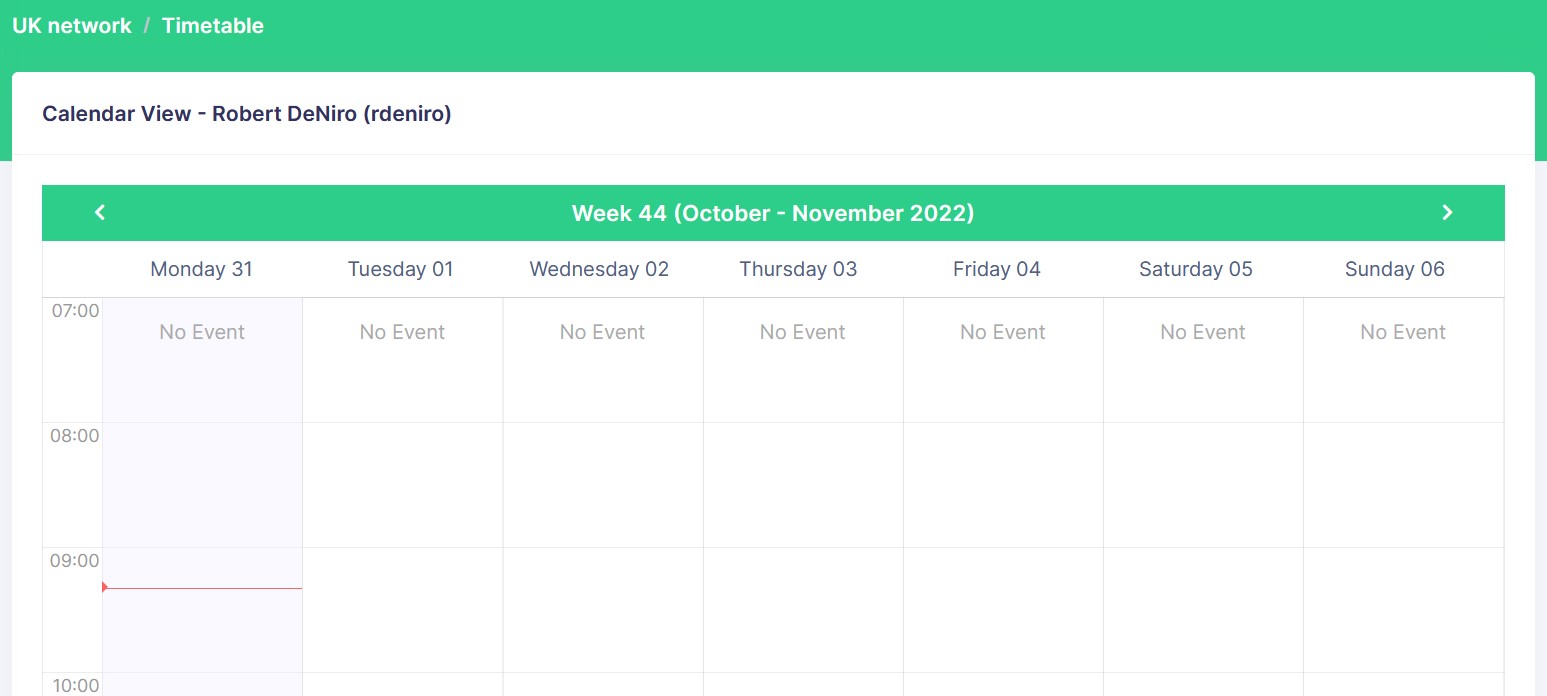
To open the Timetable page click on the Timetable button in the Actions column. Same can be done by clicking on the 'Timetable' hyperlink in Student Details page.
The Timetable page shows the student's timetable in calendar view.