Users
Customers
This section describes the permissions and features available to customers.
Dashboard
Dashboard is the first screen that appears after login. It contains a Summary Table of all the Programmes divided by sections of Year Groups. The Summary Table shows the number of Subjects, Programs, Products and Students in each Year Group. It also shows percentage data rates for each Year Group. It is a quick way to see the status of all the Programmes.
Navigate to Programme Details
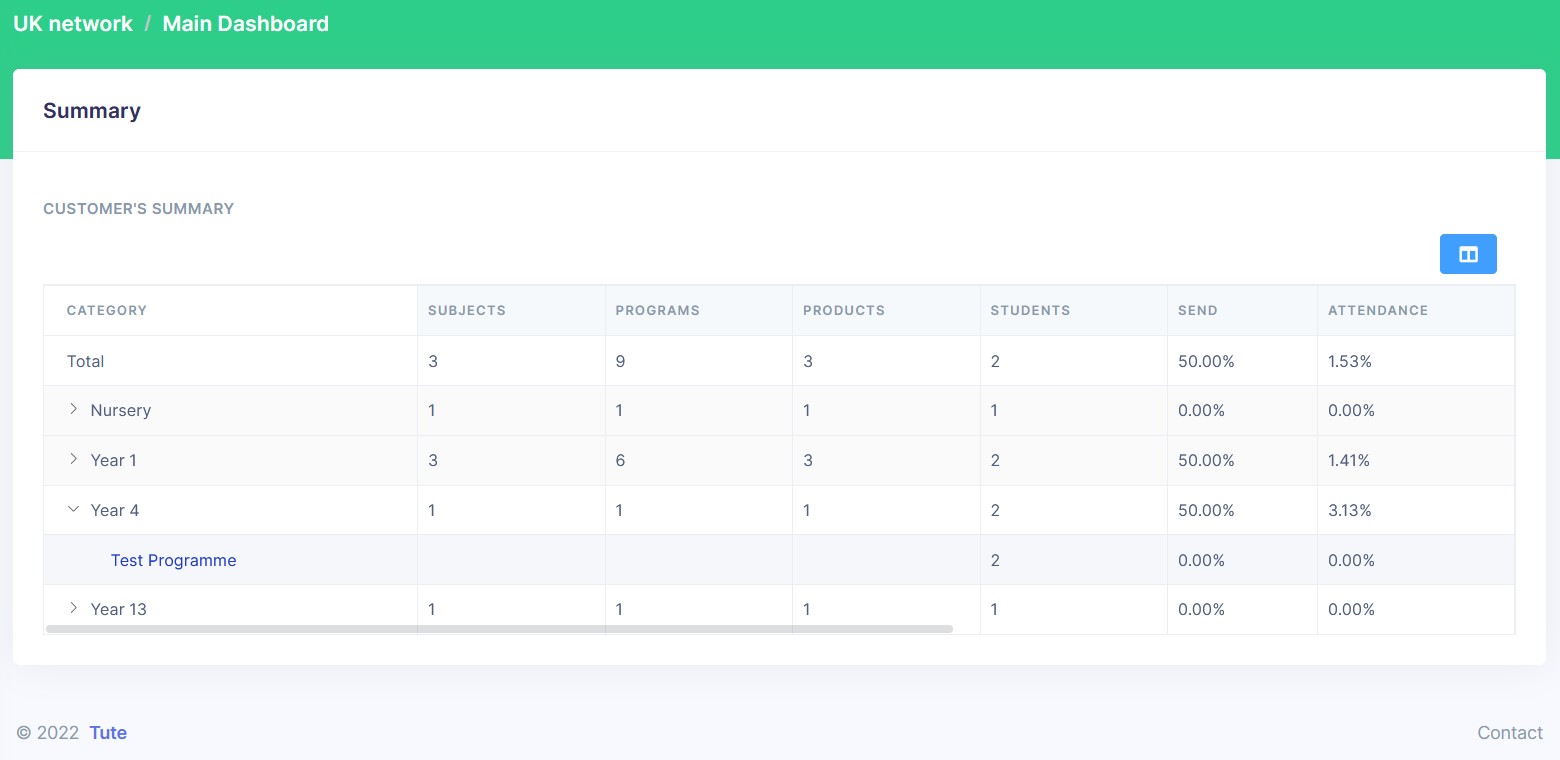
Once you click on a Year Group accordion, the Summary Table expands to show the number of Subjects, Programs, Products and Students in each Programme. A click on a Programme name (in the first column) will open the Programme Details page.
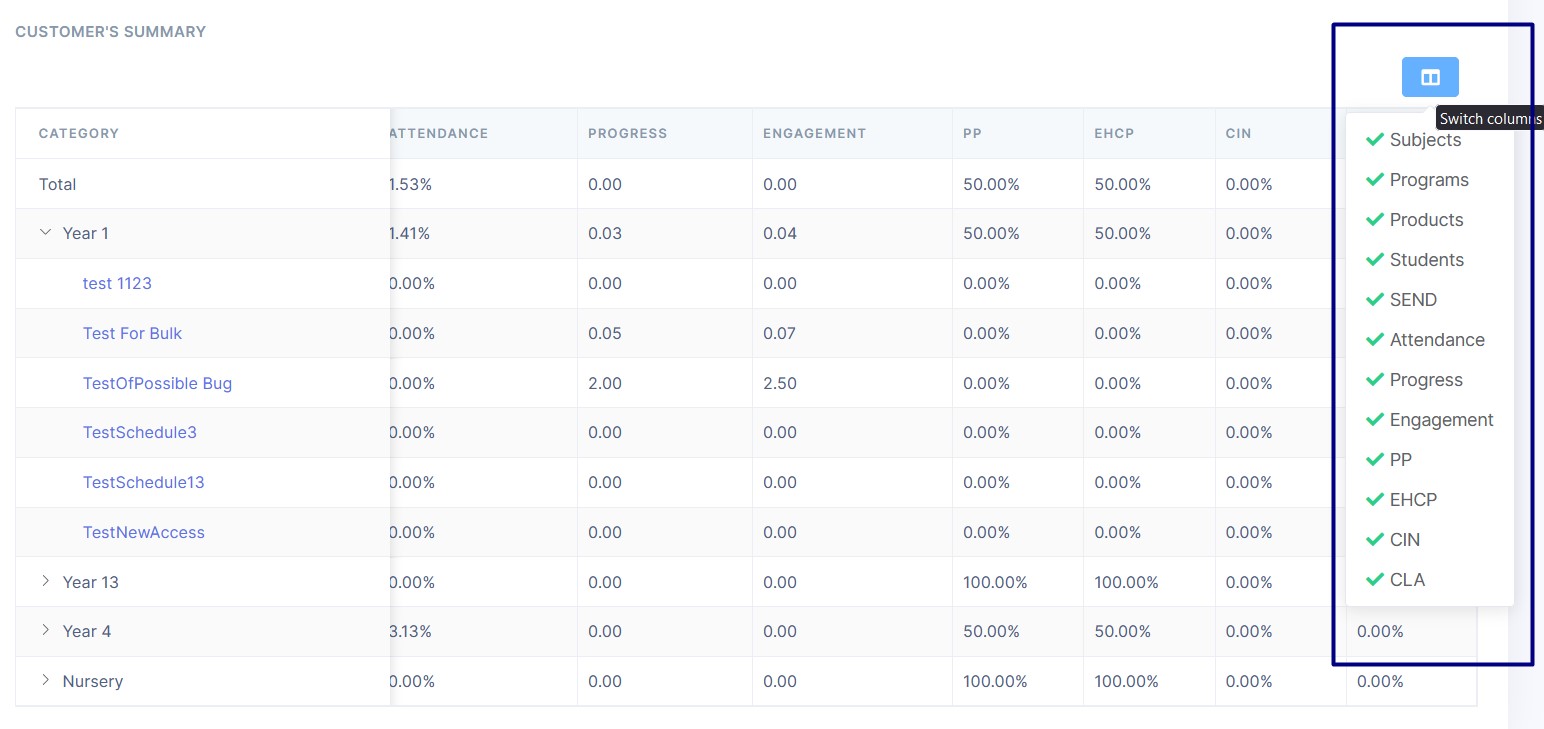
One you click on the Switch Columns button, a dropdown menu appears. You can select the columns you want to see in the Summary Table. The columns you select will be saved in your browser's local storage.
A click on one of the table headers will sort the table by that column. Clicking on the same header again will reverse the sort order.
Notifications
Notifications screen can be accessed through the second icon in the dropdown menu. It shows all the notifications that have been sent to the user.
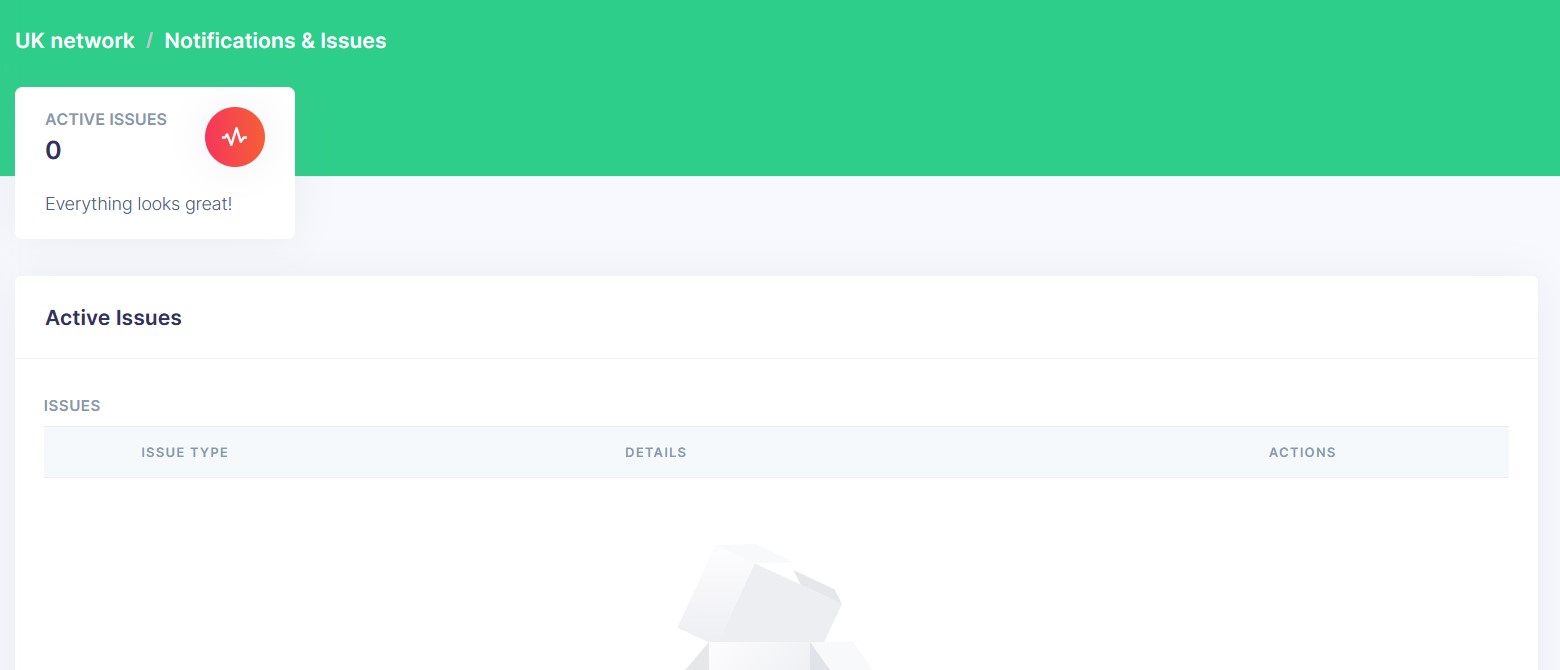
There is an Active Issues counter at the top of the screen. It shows a number of the notifications that have not been resolved.
Bases
Bases screen can be accessed through the third icon in the dropdown menu. It shows all the Bases that the user has access to.
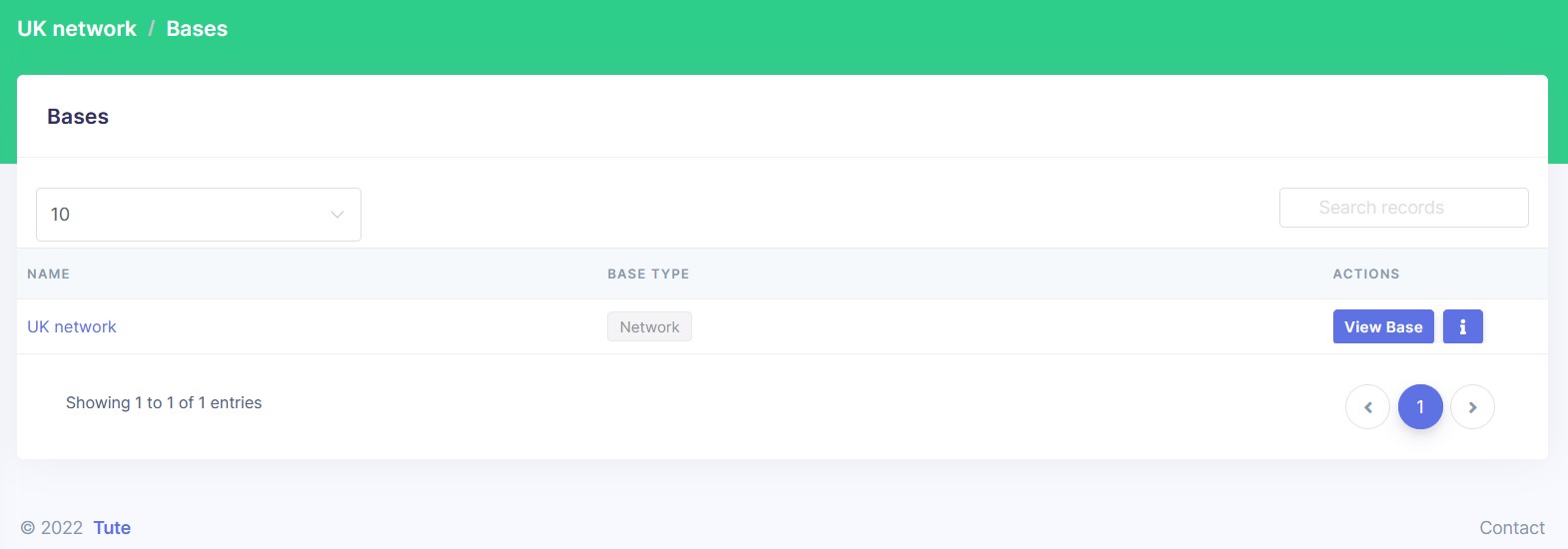
The Bases table contains the following columns:
- Name - the name of the Base
- Base Type - the type of the Base
- Actions - a subsection with two buttons 'View Base' and 'Info' (see below)
A click on the View Base button will open the Base Feed. A click on the Info button will open the Base Details page.
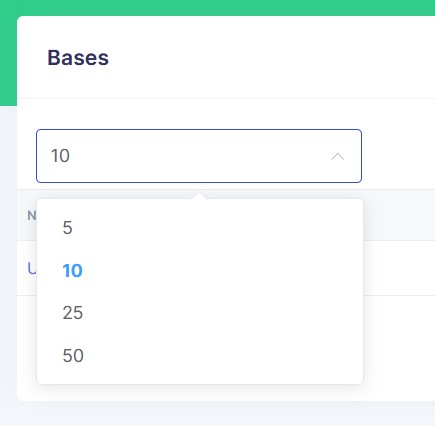
The table is paginated. You can change the number of rows per page by clicking on the dropdown menu in the top left corner of the table.
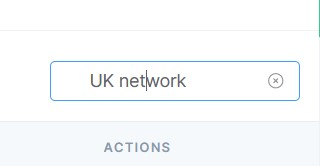
You can search for a Base by name by typing in the search field in the top right corner of the table.
Base Feed
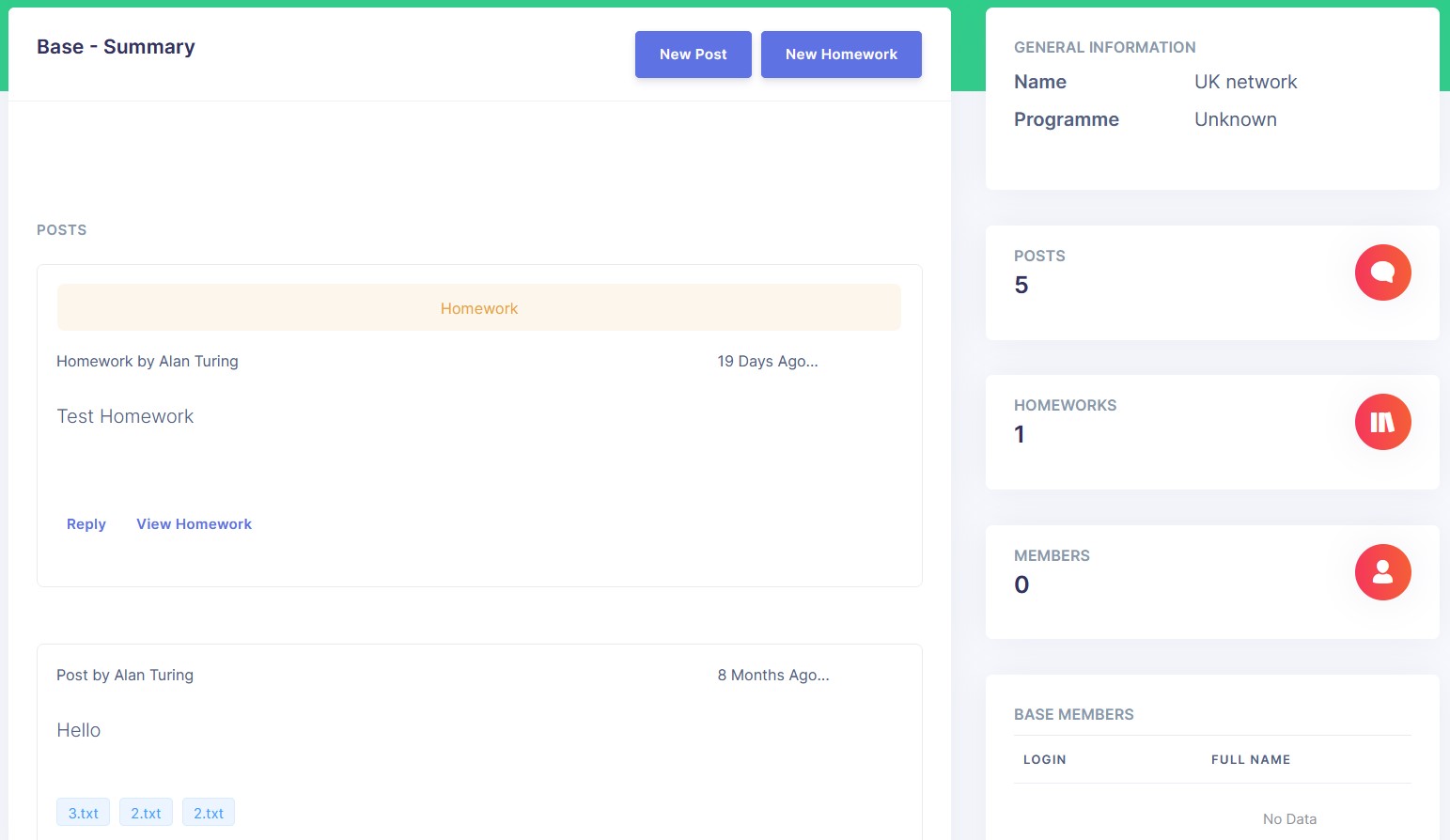
Base Details
Profile
Profile screen can be accessed through the fourth icon in the dropdown menu. It shows the user's profile information.
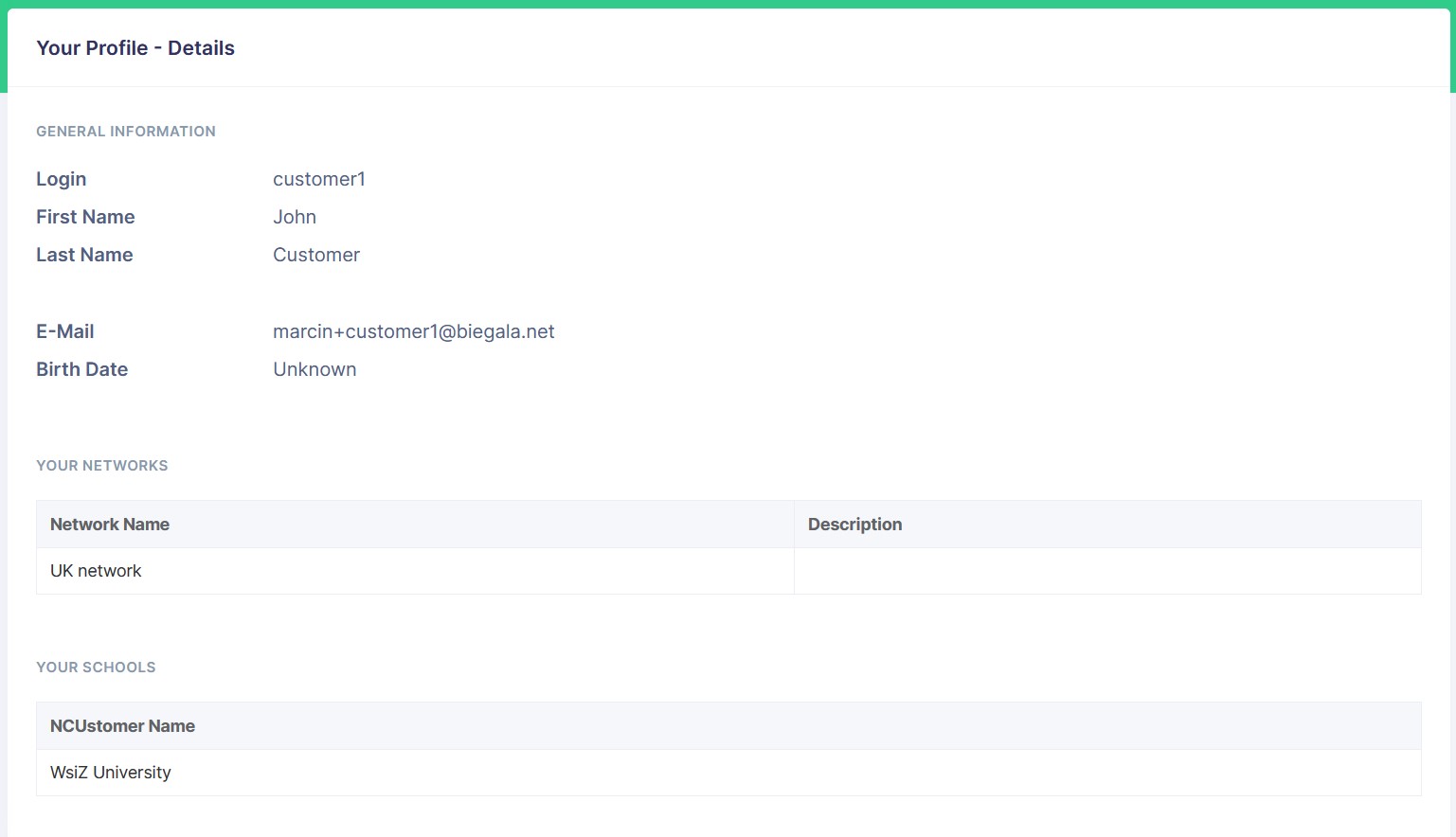
The Profile page contains general information about the user and a list of the user's Networks and Schools.
Change Password
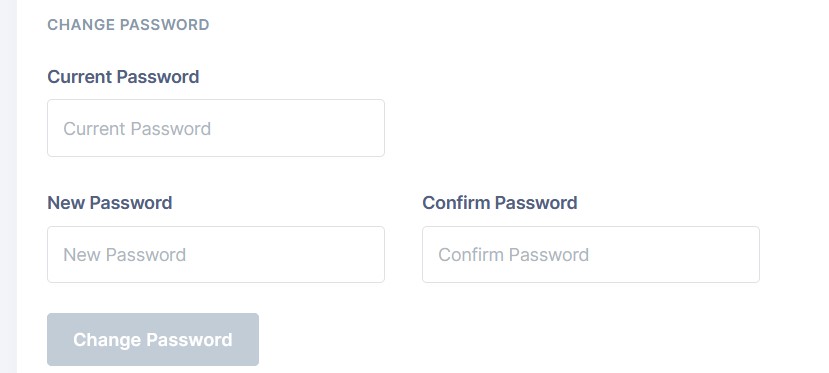
You can change your password by clicking on the Change Password button. Enter your current password and the new password twice.
Your new password must be at least 3 characters long. New password and confirmation must match.
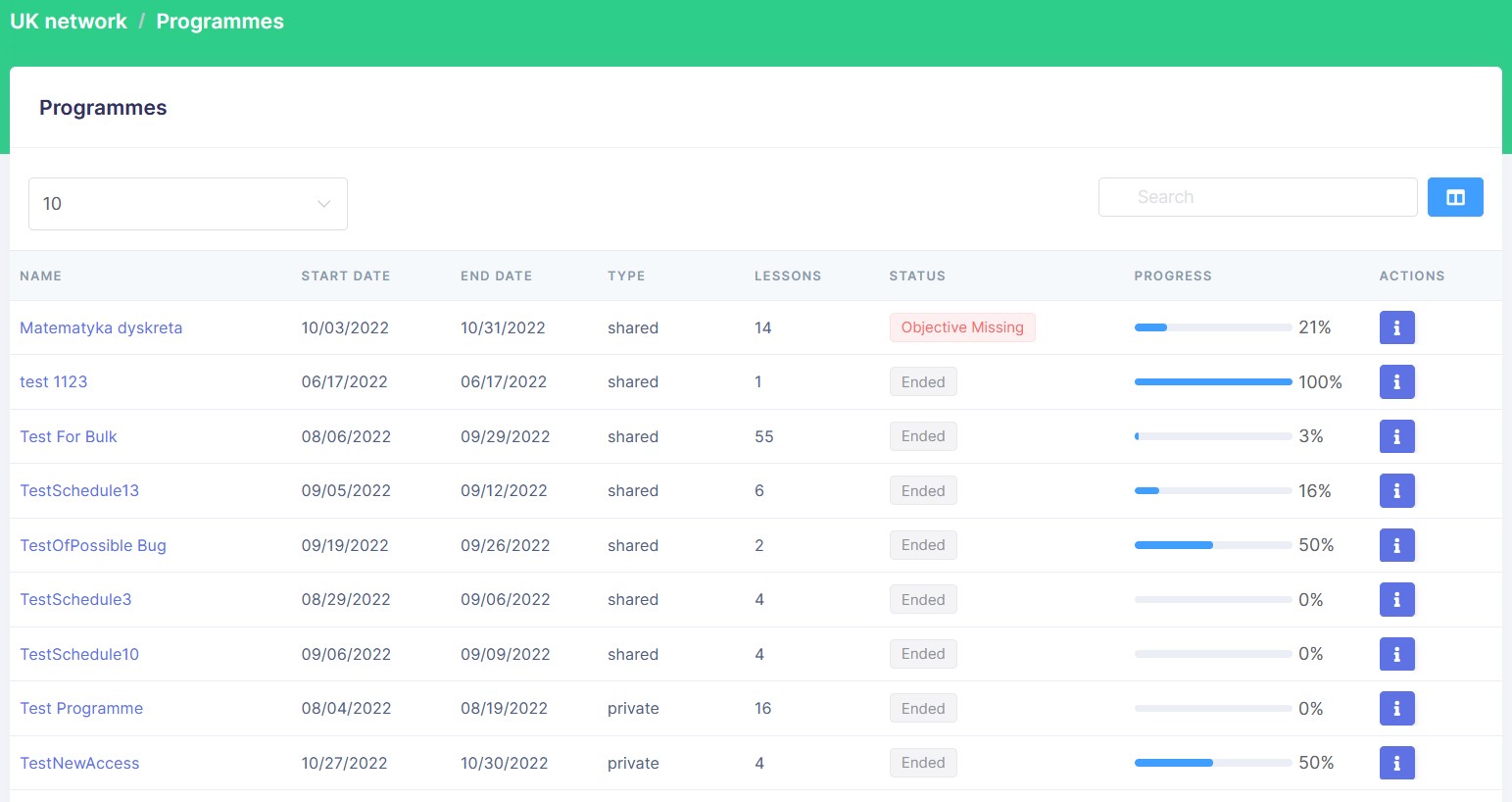
Programmes
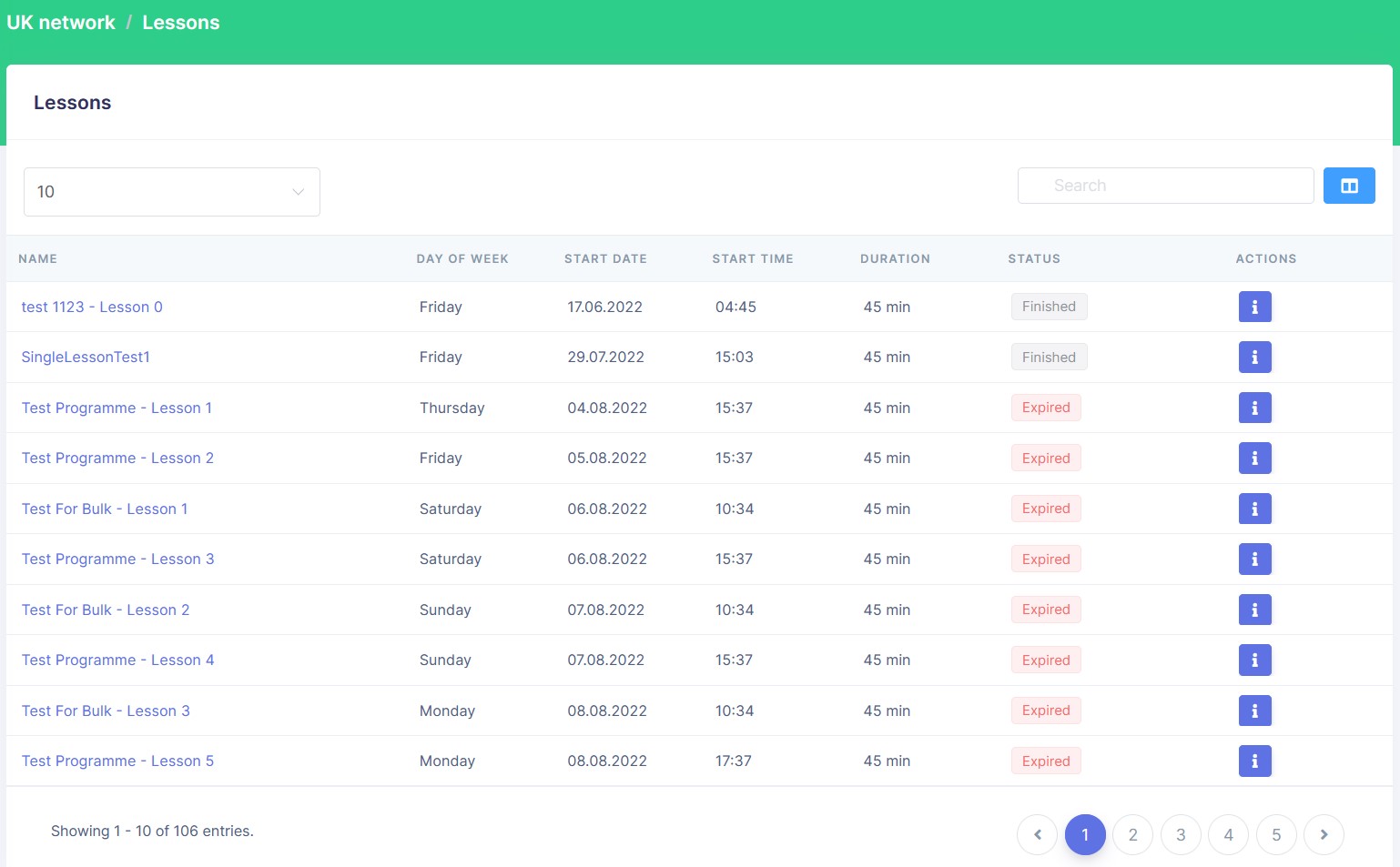
Lessons
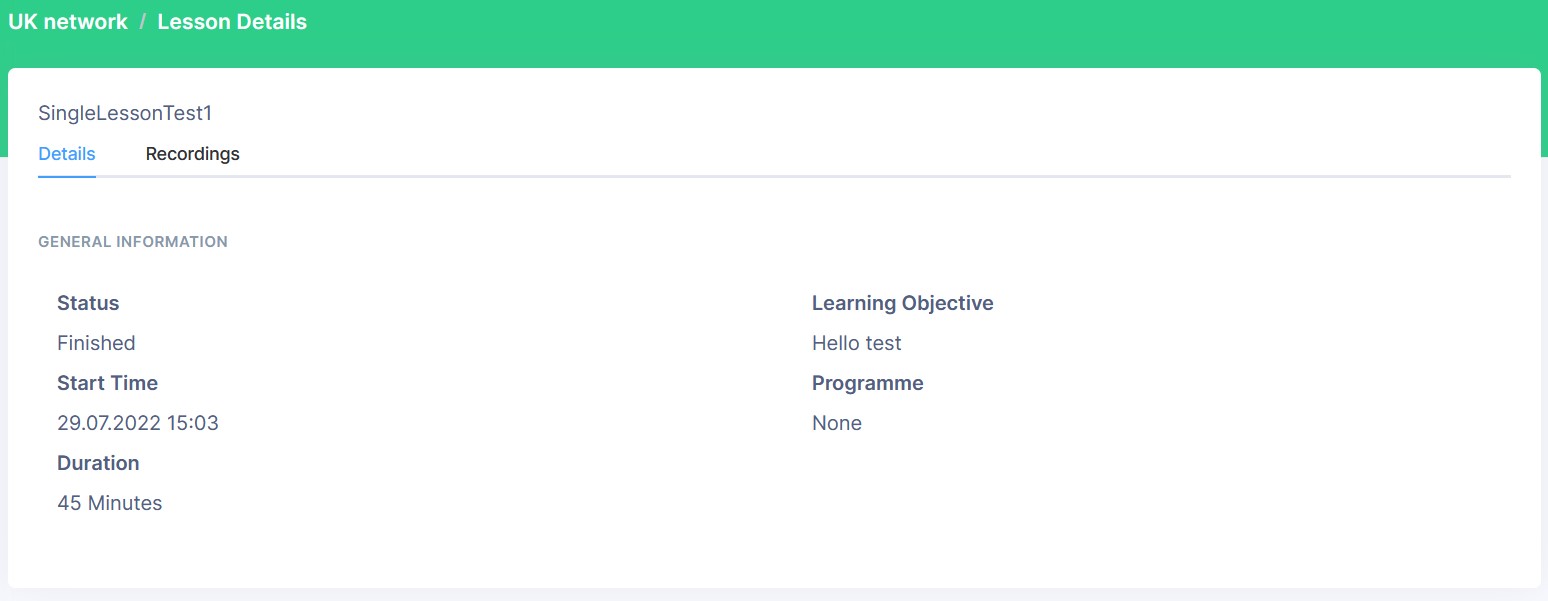
Lesson Details
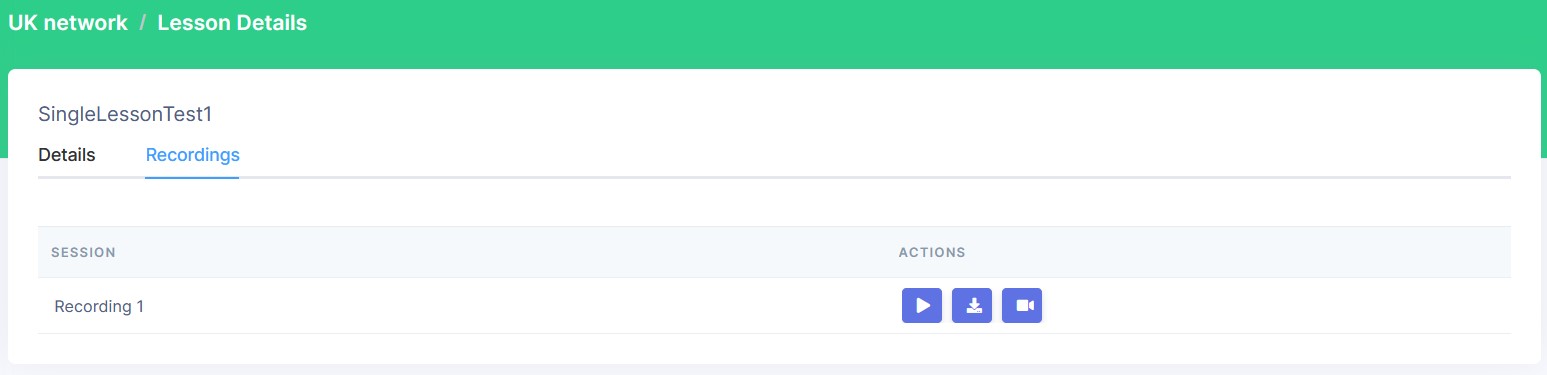
Lesson Recordings
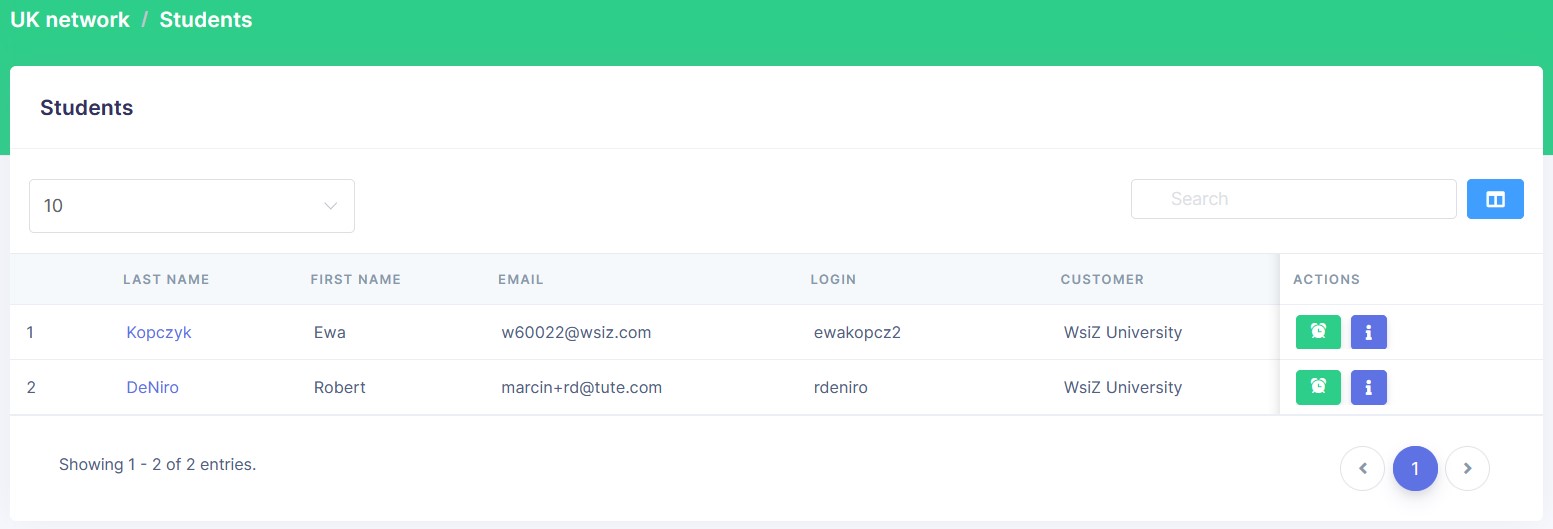
Students
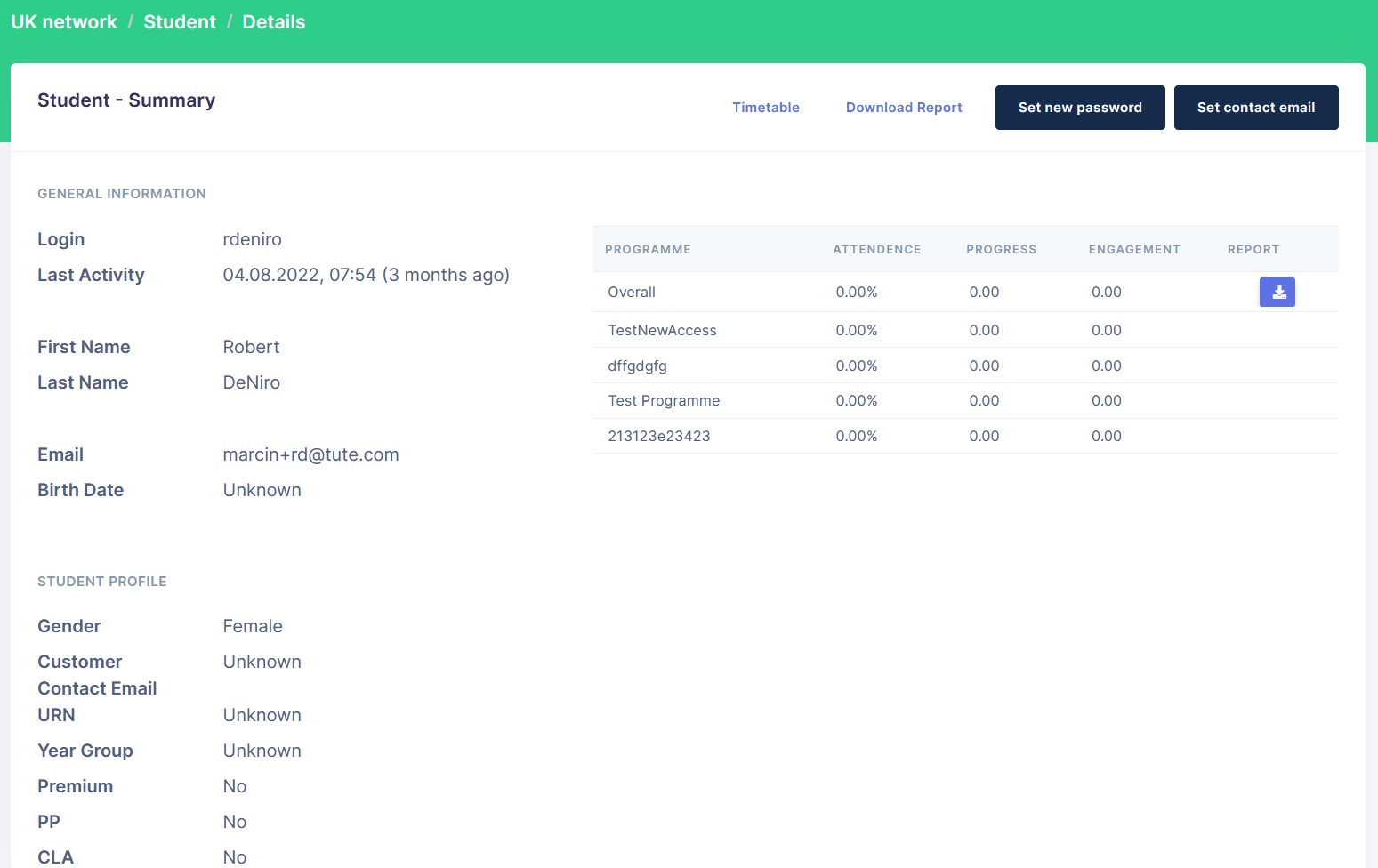
Student Details
Student Timetable